Imported Assets
Introduction
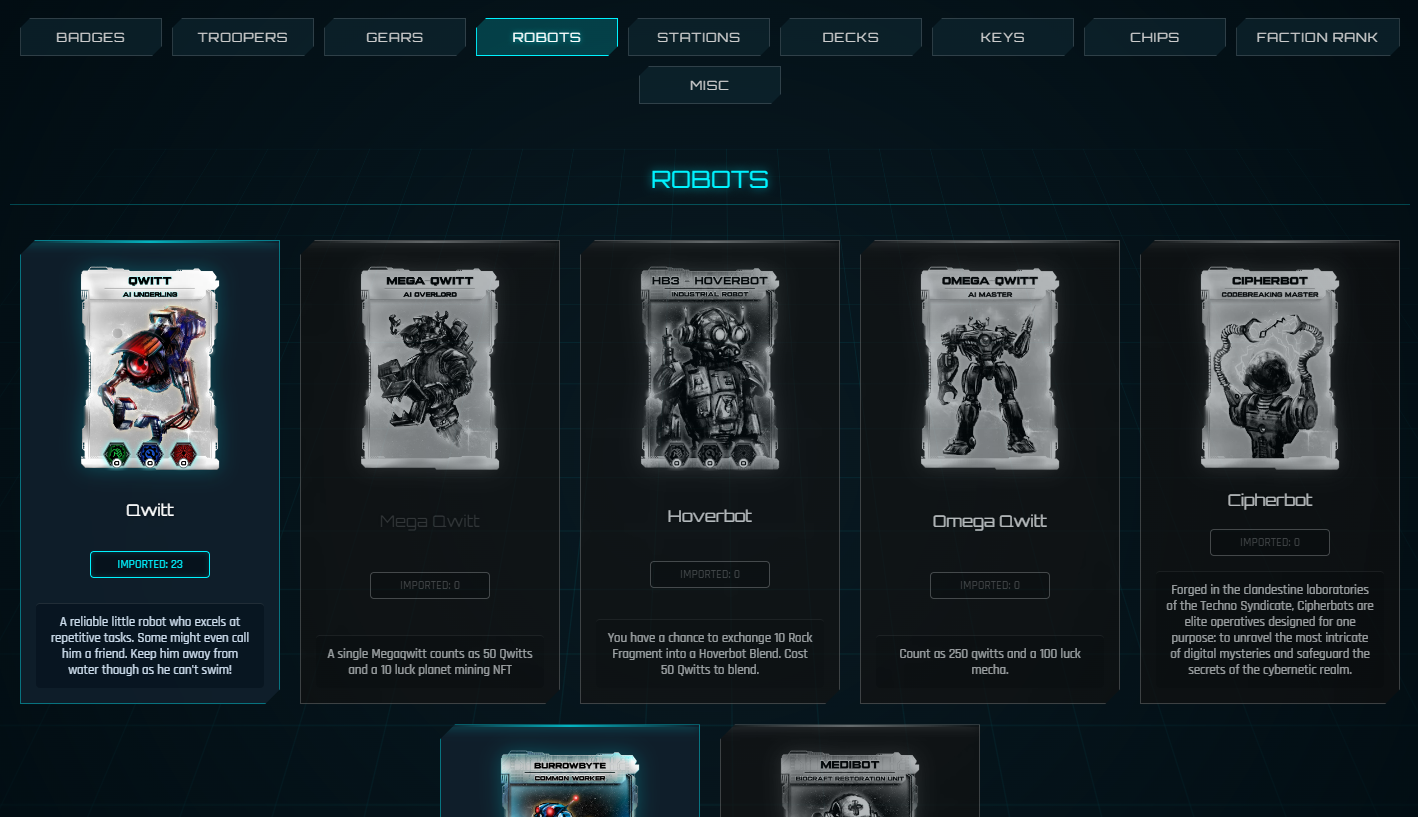
The Imported Assets system allows you to bring your permanent Assets (such as Ships, Troopers, and Gears) from your Vault or wallet into a specific Regional Server.
Note: The game does not automatically scan your wallet or Vault. You must manually choose which Assets to "Import" to the Server you want to play on.
How to Import Assets
- Go to the Server Selection screen.
- Select your desired Regional Server.
- Click the IMPORT ASSET button at the bottom of the Server Selection screen.
- Select the items you want to bring into that specific Server.
- Click the CONFIRM IMPORT button.
Once finished, these items will be available in your in-game inventory on that specific Server.
Manage Assets (Unimport)
You can manage your Assets across all regions. If you want to move an item to a different region (for example, from US to Asia):
- Unimport: On the Server Selection screen, click the MANAGE ASSETS button.
- Select & Remove: Find the item, select it, and click UNIMPORT SELECTED. This returns the Asset to your available pool.
- Re-import: Select your new target Server and use the IMPORT ASSET button to bring it there.
Viewing Assets In-Game
Once you are logged into a Server, you can view your active items by navigating to:
Account → Imported Assets tab.
Note: Importing and Unimporting Assets within the game does not require blockchain gas fees.