Vault
Introduction
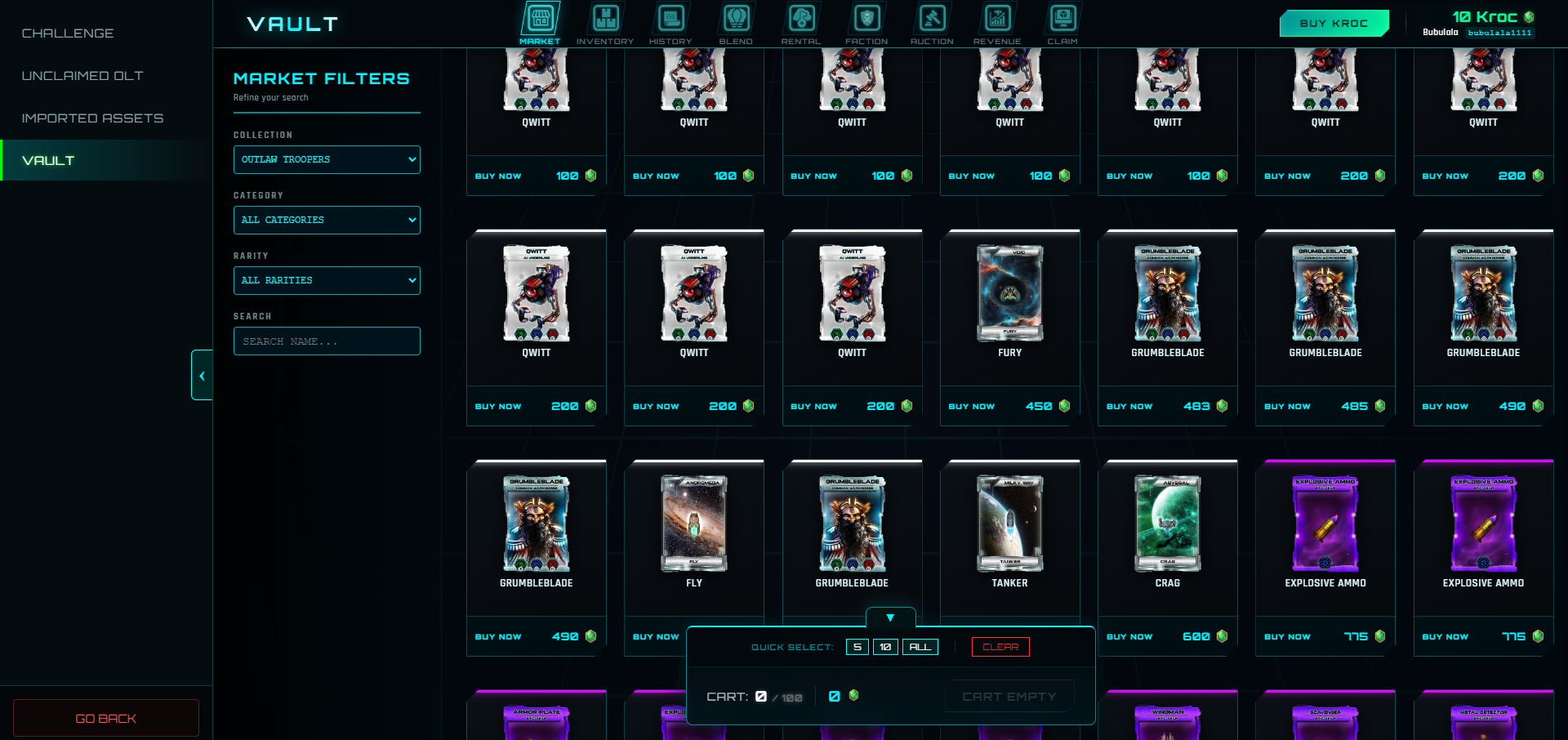
The Vault is the hub for managing your Vault Assets in Outlaw Troopers.
How to Access
- From the Outlaw Troopers main page (https://play.outlawtroopers.io/), click "Vault".
- In-game: Go to Account → Vault.
- Shortcut: Click the Kroc icon at the top of the Main Interface for direct access.
Key Rules
- Virtual Status: Items held in the Vault are considered "Virtual Vault Items". They are game-issued Assets and are not considered personal blockchain property until they are successfully withdrawn to your wallet.
- Wallet Requirement: You must link a wallet to withdraw items or claim OLT. (See Getting Started for linking instructions).
- One-Way Withdrawal: You can withdraw your Vault items to the blockchain at any time. However, once an item is withdrawn, it cannot be returned to the Vault for trading or Blending.
- No Deposits: You cannot deposit tokens or NFTs into the Vault.
- Withdrawal Time: Processing a withdrawal request can take up to 24 hours.
- Currency: The Vault uses Kroc for all market transactions, auctions, and upgrades.
Vault Functions
- BUY KROC: Click the Buy Kroc button to exchange FGL Token or OLT Token for Kroc.
- MARKET: Buy and sell items with other players using Kroc.
- INVENTORY: View your current items, list them for sale in the Market, or request a withdrawal to the blockchain.
- OLT: Claim your earned OLT and view withdrawal history. (See Outlaw Token for withdrawal rules).
- HISTORY: Track the market transactions and your withdrawal requests.
- BLEND: Blend vouchers, upgrade item rarity, convert Ships, or craft Decks.
- RENTAL: Rent out your items or rent items from other players.
- FACTION: Purchase and upgrade your Faction Rank items.
- AUCTION: Bid on auctions.
- REVENUE: View a weekly breakdown of sales and profit distributions (primarily for Space Station owners).
- CLAIM: Claim Prizes and newly immortalized items.
Using Vault Assets In-Game
To use any Vault Asset or NFT in-game (such as Ships, Troopers, etc.), you must manually Import them to your desired Regional Server. For more details, please see Imported Assets.