Vault: Difference between revisions
(Redirected page to FGL Vault) Tag: New redirect |
m (Removed redirect to FGL Vault) Tag: Removed redirect |
||
| Line 1: | Line 1: | ||
# | <html><img height=285 src='https://misc.outlawtroopers.io/images/vault.png?'/></html> | ||
The [[Vault]] is the hub for managing your [[Vault]] aseets in [[Outlaw Troopers]]. | |||
==How to Access== | |||
- From the [[Outlaw Troopers]] main page (https://play.outlawtroopers.io/), click "Vault". | |||
- While in-game, go to Account → Asset Vault | |||
== Key Rules == | |||
- [[Kroc]] Currency: The [[Vault]] uses [[Kroc]] for all market transactions, auctions, and upgrades. | |||
- No Deposits: You cannot deposit tokens or NFTs into the [[Vault]]. | |||
- One-Way Withdrawal: You can withdraw your [[Vault]] items to the blockchain at any time. However, once an item is withdrawn, it cannot be returned to the [[Vault]] for trading or blending. | |||
- Withdrawal Time: Processing a withdrawal can take up to 24 hours. | |||
== Vault Functions == | |||
The [[Vault]] is divided into several tabs for easy management. | |||
- MARKET: Buy and sell items with other players using [[Kroc]]. | |||
- INVENTORY: View your current items, list for sale in MARKET or request a withdrawal to the blockchain. | |||
- HISTORY: Track the market transactions and your withdrawal requests. | |||
- BLEND: Including vouchers, rarity upgrades, [[Ship]] converting and [[Deck]] crafting. | |||
- RENTAL: Rent out your items or rent items from other players. | |||
- FACTION: Purchase and upgrade your [[Faction Rank]] items. | |||
- AUCTION: Bid on auctions. | |||
- REVENUE: View a weekly breakdown of sales and profit distributions (primarily for [[Space Station]] owners). | |||
- CLAIM: Claim [[Prizes]] and newly immortalized items. | |||
==Importing Assets== | |||
The game no longer scans your [[Vault]] or wallet automatically. To use your assets ([[Ships]], [[Troopers]], etc.) in the game, you must manually import them: | |||
- Go to the [[Server]] Selection screen. | |||
- Select your desired [[Regional]] [[Server]]. | |||
- Click the <i><b style="color: #ffb6c1;">Import Asset</b></i> button. | |||
- Select the items you want to bring into that specific [[Server]]. | |||
Revision as of 01:59, 31 January 2026
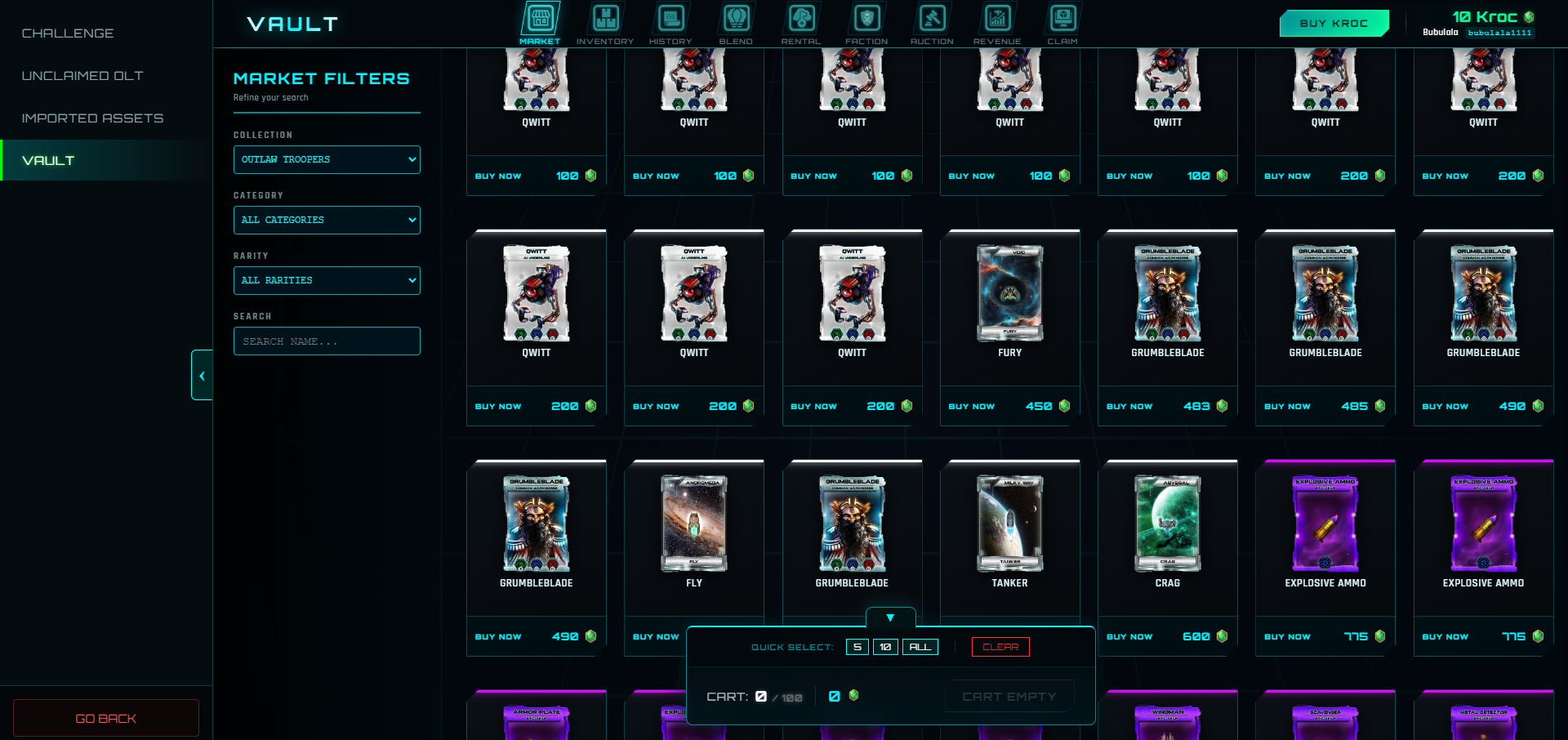
The Vault is the hub for managing your Vault aseets in Outlaw Troopers.
How to Access
- From the Outlaw Troopers main page (https://play.outlawtroopers.io/), click "Vault".
- While in-game, go to Account → Asset Vault
Key Rules
- Kroc Currency: The Vault uses Kroc for all market transactions, auctions, and upgrades.
- No Deposits: You cannot deposit tokens or NFTs into the Vault.
- One-Way Withdrawal: You can withdraw your Vault items to the blockchain at any time. However, once an item is withdrawn, it cannot be returned to the Vault for trading or blending.
- Withdrawal Time: Processing a withdrawal can take up to 24 hours.
Vault Functions
The Vault is divided into several tabs for easy management.
- MARKET: Buy and sell items with other players using Kroc.
- INVENTORY: View your current items, list for sale in MARKET or request a withdrawal to the blockchain.
- HISTORY: Track the market transactions and your withdrawal requests.
- BLEND: Including vouchers, rarity upgrades, Ship converting and Deck crafting.
- RENTAL: Rent out your items or rent items from other players.
- FACTION: Purchase and upgrade your Faction Rank items.
- AUCTION: Bid on auctions.
- REVENUE: View a weekly breakdown of sales and profit distributions (primarily for Space Station owners).
- CLAIM: Claim Prizes and newly immortalized items.
Importing Assets
The game no longer scans your Vault or wallet automatically. To use your assets (Ships, Troopers, etc.) in the game, you must manually import them:
- Go to the Server Selection screen.
- Select your desired Regional Server.
- Click the Import Asset button.
- Select the items you want to bring into that specific Server.