Getting Started: Difference between revisions
No edit summary |
m (→Next Steps) |
||
| (191 intermediate revisions by 2 users not shown) | |||
| Line 1: | Line 1: | ||
==Getting Started== | |||
Welcome to [[Outlaw Troopers]]! This guide will help you set up your account, link your wallet, and begin building your [[Empire]]. | |||
==Step 1: Login & Account Setup== | |||
To begin your journey, you must create a game account. <b>Guest Play is currently unavailable.</b> | |||
- Go to https://play.outlawtroopers.io/ and click <b>Register</b> in the top right. | |||
- Create your account using an email address. | |||
< | - Check your email and click the verification link to activate your account. | ||
<html><img src='https:// | |||
==Step 2: Link Your Wallet (Optional)== | |||
< | Linking a wallet is optional to start playing. However, it is required if you want to use your NFTs or access existing progress such as [[Fragments]], [[Vault]] [[Assets]], and unclaimed [[Prizes]]. | ||
<html><img src= | |||
You also need a linked wallet to withdraw rewards or immortalized items like [[OLT]], [[Prizes]], or [[Gears]]. | |||
- Log in to the Game Interface. | |||
- Click the <b>Vault</b> button in the top right. | |||
- Click <b>Link Wallet</b> in the top right. | |||
- Follow the prompts to connect your wallet. | |||
Note for Wombat Users: If you use Wombat on the WAX network, select WAX first, then select Wombat. | |||
⚠️ IMPORTANT: Wallet Linking Rules | |||
- Permanent Link: Once a wallet is linked to your email, it cannot be removed or changed. | |||
- 1 Email = 1 Wallet: Each email can link to only one wallet. | |||
- Switching Wallets: To use a different wallet or blockchain, you must register a new email. | |||
==Step 3: Select Your Regional Server== | |||
<html><img height=285 src='https://misc.outlawtroopers.io/images/server.png?'/> </html> | |||
The game runs on [[Regional]] [[Servers]] for better performance and speed. | |||
- Regions: Choose between US, EU or Asia. | |||
- [[Regional]] Progression: Your [[Empire]] level, [[Credits]], and gameplay progress are unique to each [[Server]]. They do not transfer between regions. | |||
- Multi-Play: You can build a different [[Empire]] on every [[Server]] using the same account (e.g., one on SG and one on EU). | |||
==Step 4: Import & Manage Assets (For Wallet Users)== | |||
The game does not automatically scan your wallet or [[Vault]]. You must manually choose which [[Assets]] to "Import" to the [[Server]] you want to play on. | |||
Use the <b>IMPORT ASSET</b> and <b>MANAGE ASSETS</b> buttons at the bottom of the Server Selection screen. | |||
- Importing: To use an [[Asset]] (e.g., [[Ship]], [[Gear]], etc.), you must [[Import]] it to a specific [[Server]]. | |||
- Managing: You can [[Unimport]] an [[Asset]] from one [[Server]] and [[Import]] it to another at any time. This allows you to move your [[Assets]] (e.g. [[Troopers]] and [[Gears]]) between your different [[Regional Empires]]. | |||
- Active Binding (Sales & Rentals): | |||
*If you sell or rent out an item, it is automatically removed from your [[Server]] once the other person imports it. | |||
*When a rental expires, the item returns to your [[Vault]]. Re-import it if you want to use it again. | |||
==Step 5: Start Playing== | |||
Once you select a [[Server]], you can start playing. | |||
===Tutorial & Unlocks=== | |||
When you enter a [[Server]], the tutorial begins. | |||
- Many menus are hidden at first. Follow the tutorial to unlock features gradually. | |||
- You can skip the tutorial via [[Settings]], but it's highly recommended that you follow and complete the tutorial especially for new players. | |||
===Interactive Top Bar=== | |||
The resource icons at the top of the Main Interface are more than just counters, they are also <i><b style="color: #ffb6c1;">shortcuts</b></i>. You can click these icons to jump directly to specific menus. | |||
Example: | |||
- [[Credits]]: Opens the [[Black Market]]. | |||
- [[Radioactive Shard]]: Opens the [[Purification]]. | |||
- [[Artifacts]]: Opens The [[Abyss]]. | |||
Explore the other icons to find more shortcuts! | |||
⚠️ Note: These shortcuts only become active after you progress far enough in the tutorial. If clicking them does nothing, continue following the tutorial tasks. | |||
===Bottom Navigation Bar=== | |||
This is your hub for managing your [[Empire]], trading, and exploring game modes. | |||
===Settings Button=== | |||
<html><img width= 50 src=https://play.outlawtroopers.io/images/mainSettingIcon.webp?></html> | |||
The Settings menu provides access to the [[Settings]], [[Chat]], [[Report Bug]], [[Wheel Spin]], Patch Notes, and Skip Tutorial. | |||
==Next Steps== | |||
Once familiar with the interface, explore the core game modes: | |||
- [[Encounters]]: Start your battles and learn the basics in the [[Encounter Guide]]. | |||
- [[The Abyss]]: Craft [[Biocrafts]], explore through [[Delving]], and fight in the [[Arena]]. | |||
- [[Robot Warfare]]: A [[Clan]] vs. [[Clan]] mode where you use [[Robot Assets]] to capture nodes and earn scrap to build your forces. | |||
- [[Ship Battle]]: Build your fleet and compete in various [[Ship Battle]] modes. | |||
- [[Spacefarer]]: Send [[Companions]] and [[Troopers]] on passive [[Missions]] for rewards. | |||
Latest revision as of 16:38, 15 April 2026
Getting Started
Welcome to Outlaw Troopers! This guide will help you set up your account, link your wallet, and begin building your Empire.
Step 1: Login & Account Setup
To begin your journey, you must create a game account. Guest Play is currently unavailable.
- Go to https://play.outlawtroopers.io/ and click Register in the top right.
- Create your account using an email address.
- Check your email and click the verification link to activate your account.
Step 2: Link Your Wallet (Optional)
Linking a wallet is optional to start playing. However, it is required if you want to use your NFTs or access existing progress such as Fragments, Vault Assets, and unclaimed Prizes.
You also need a linked wallet to withdraw rewards or immortalized items like OLT, Prizes, or Gears.
- Log in to the Game Interface.
- Click the Vault button in the top right.
- Click Link Wallet in the top right.
- Follow the prompts to connect your wallet.
Note for Wombat Users: If you use Wombat on the WAX network, select WAX first, then select Wombat.
⚠️ IMPORTANT: Wallet Linking Rules
- Permanent Link: Once a wallet is linked to your email, it cannot be removed or changed.
- 1 Email = 1 Wallet: Each email can link to only one wallet.
- Switching Wallets: To use a different wallet or blockchain, you must register a new email.
Step 3: Select Your Regional Server
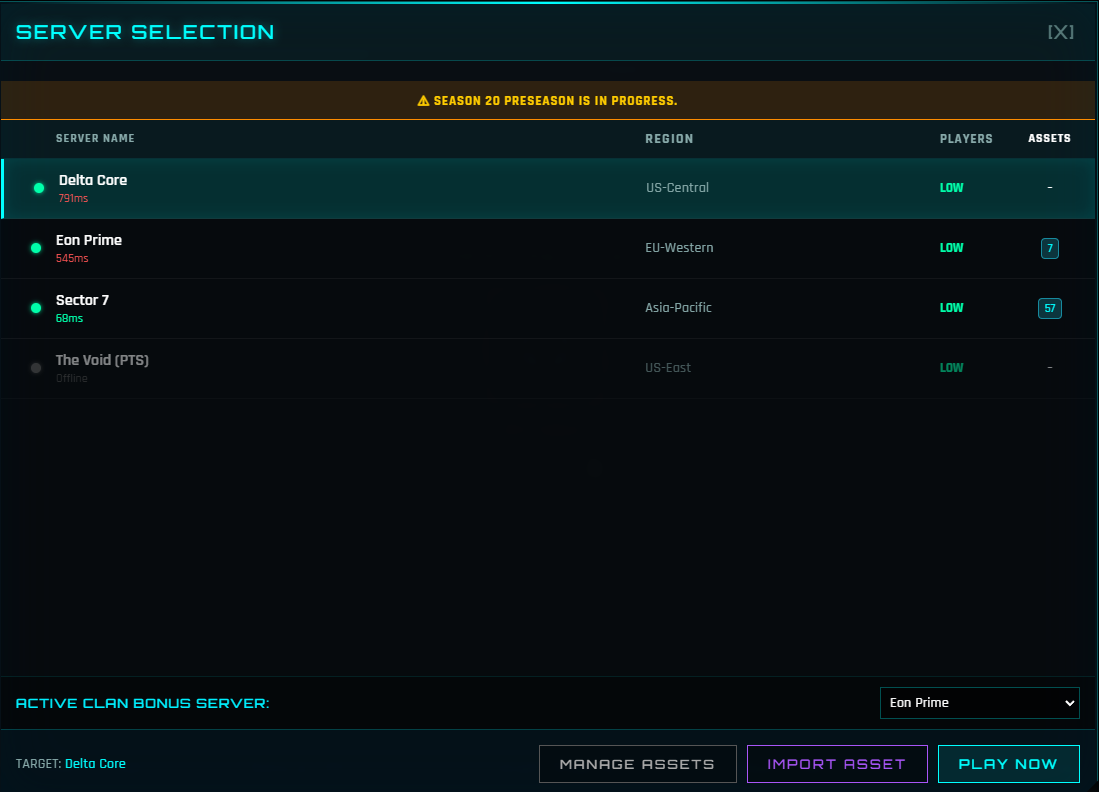
The game runs on Regional Servers for better performance and speed.
- Regions: Choose between US, EU or Asia.
- Regional Progression: Your Empire level, Credits, and gameplay progress are unique to each Server. They do not transfer between regions.
- Multi-Play: You can build a different Empire on every Server using the same account (e.g., one on SG and one on EU).
Step 4: Import & Manage Assets (For Wallet Users)
The game does not automatically scan your wallet or Vault. You must manually choose which Assets to "Import" to the Server you want to play on.
Use the IMPORT ASSET and MANAGE ASSETS buttons at the bottom of the Server Selection screen.
- Importing: To use an Asset (e.g., Ship, Gear, etc.), you must Import it to a specific Server.
- Managing: You can Unimport an Asset from one Server and Import it to another at any time. This allows you to move your Assets (e.g. Troopers and Gears) between your different Regional Empires.
- Active Binding (Sales & Rentals):
- If you sell or rent out an item, it is automatically removed from your Server once the other person imports it.
- When a rental expires, the item returns to your Vault. Re-import it if you want to use it again.
Step 5: Start Playing
Once you select a Server, you can start playing.
Tutorial & Unlocks
When you enter a Server, the tutorial begins.
- Many menus are hidden at first. Follow the tutorial to unlock features gradually.
- You can skip the tutorial via Settings, but it's highly recommended that you follow and complete the tutorial especially for new players.
Interactive Top Bar
The resource icons at the top of the Main Interface are more than just counters, they are also shortcuts. You can click these icons to jump directly to specific menus.
Example:
- Credits: Opens the Black Market.
- Radioactive Shard: Opens the Purification.
Explore the other icons to find more shortcuts!
⚠️ Note: These shortcuts only become active after you progress far enough in the tutorial. If clicking them does nothing, continue following the tutorial tasks.
This is your hub for managing your Empire, trading, and exploring game modes.
Settings Button
The Settings menu provides access to the Settings, Chat, Report Bug, Wheel Spin, Patch Notes, and Skip Tutorial.
Next Steps
Once familiar with the interface, explore the core game modes:
- Encounters: Start your battles and learn the basics in the Encounter Guide.
- The Abyss: Craft Biocrafts, explore through Delving, and fight in the Arena.
- Robot Warfare: A Clan vs. Clan mode where you use Robot Assets to capture nodes and earn scrap to build your forces.
- Ship Battle: Build your fleet and compete in various Ship Battle modes.
- Spacefarer: Send Companions and Troopers on passive Missions for rewards.