Spacefarer: Difference between revisions
No edit summary |
|||
| (59 intermediate revisions by the same user not shown) | |||
| Line 1: | Line 1: | ||
== | ==Introduction== | ||
<html><img src='https://outlawtroopers. | <html><img width=640 src='https://misc.outlawtroopers.io/images/galaxymission1.png?'/></html> | ||
[[Spacefarer]] is an | [[Spacefarer]] is a passive game mode where players assign [[Troopers]] and [[Companions]] to complete missions over time. It is an excellent source of resources like [[Credits]], [[Normal Access Keys]] and [[A.R.C Initiators]] without requiring active gameplay. | ||
== | ==Regional Missions== | ||
Spacefarer missions are [[Regional]]. | |||
- Server-Specific: Each [[Regional]] [[Server]] (US, EU, and Asia) has its own unique list of missions and open slots. | |||
- Reduced Competition: You only compete for mission slots with players on the same [[Server]]. For example, players in Asia do not compete for slots with players in the US or EU. | |||
⚠️ Important: To use your [[Troopers]] or [[Grunt Gears]], [[Import]] them to that specific [[Server]] via the Server Selection screen. | |||
==How to Play?== | |||
Go to Manage → Spacefarer. The interface is divided into the Galaxy Map (Left) and the Control Panel (Right). | |||
=== | ===Control Panel=== | ||
The right side of the screen features three main tabs: | |||
- COMMAND: Manage your strategy and upgrade. | |||
*System Select/Whitelist: Choose which Solar Systems your units are allowed to visit. | |||
*Upgrades: Spend [[Lifeforce]] to increase your <b>Max Active Units</b>, <b>Whitelist Capacity</b>, and <b>Unit Stats</b> (Damage & HP). | |||
*Zone Data: View details about rewards in different zones. | |||
- UNIT: Manage your units. | |||
*Filters: Quickly sort units by <b>All</b>, <b>Guardians</b>, <b>Mission</b>, or <b>Idle</b>. | |||
*Active Units: Your [[Faction Rank]] provides additional bonuses to the maximum number of units you can have active at once. | |||
*Actions: Use "Set Active" to send units out, or "Set Idle" to recall them. | |||
- INTEL: Track your progress and claim rewards. | |||
*Operation Report: A summary of recent activities. | |||
*Resource Cache: Displays your accumulated resources. | |||
*Claim All Rewards: Collect all accumulated resources to your inventory. | |||
*Access Logs: View a detailed history of your unit's journey. | |||
===Galaxy Map=== | |||
The galaxy map is zoomable and movable. You must ensure travel paths between Solar Systems are connected so your units can move from one system to another. Systems are color-coded by risk: | |||
- Green (Safe Zones): No attacks, but higher competition and lower rewards. | |||
- Yellow (Neutral Zones): Moderate risk. GIO enemies will attack, but Allies' [[Guardian]] [[Troopers]] will assist you. | |||
- Red (Danger Zones): High risk. Frequent attacks and no ally support, you’re on your own, but offers the highest rewards. | |||
==Setting Up Your Unit== | |||
===Mission Units (Workhorse & Utility)=== | |||
These units automatically survey, accept, and complete missions. | |||
- How to Start: Select these units in the UNIT tab and click "Set Active". They will automatically travel to systems allowed by your whitelist. | |||
===Guardian Units=== | |||
These units do not run missions. Instead, they patrol the galaxy to protect your Mission Units from attacks. | |||
- Bounty: Guardians [[Troopers]] earn extra [[Credits]] for every enemy defeated while securing. | |||
[[ | ==Whitelist System== | ||
Units will only accept missions in Solar Systems that are on your whitelist. | |||
- Basic Whitelist: 7 Green Safe Zones by default. | |||
- Customizable Whitelist: You can upgrade your <b>Whitelist Capacity</b> using [[Lifeforce]] to whitelist Yellow and Red zones. | |||
- Manage Whitelist: Add or remove Yellow and Red Zones anytime in the COMMAND tab to balance risk and reward. | |||
==Rewards & Bonuses== | |||
Rewards accumulate automatically and can be claimed at any time during the [[Season]] in the INTEL tab. | |||
Factors Affecting Rewards: | |||
- Zone Difficulty: Red zones pay more than Green zones. | |||
- Unit Rarity & Type: Both rarity and type of [[Troopers]] used will influence your rewards. | |||
- [[Grunt Gears]]: Owning [[Grunt Gears]] provides passive bonuses (capped at 10 Legendary value). This includes both imported [[Assets]] and virtual items in your inventory. | |||
Latest revision as of 02:07, 15 April 2026
Introduction
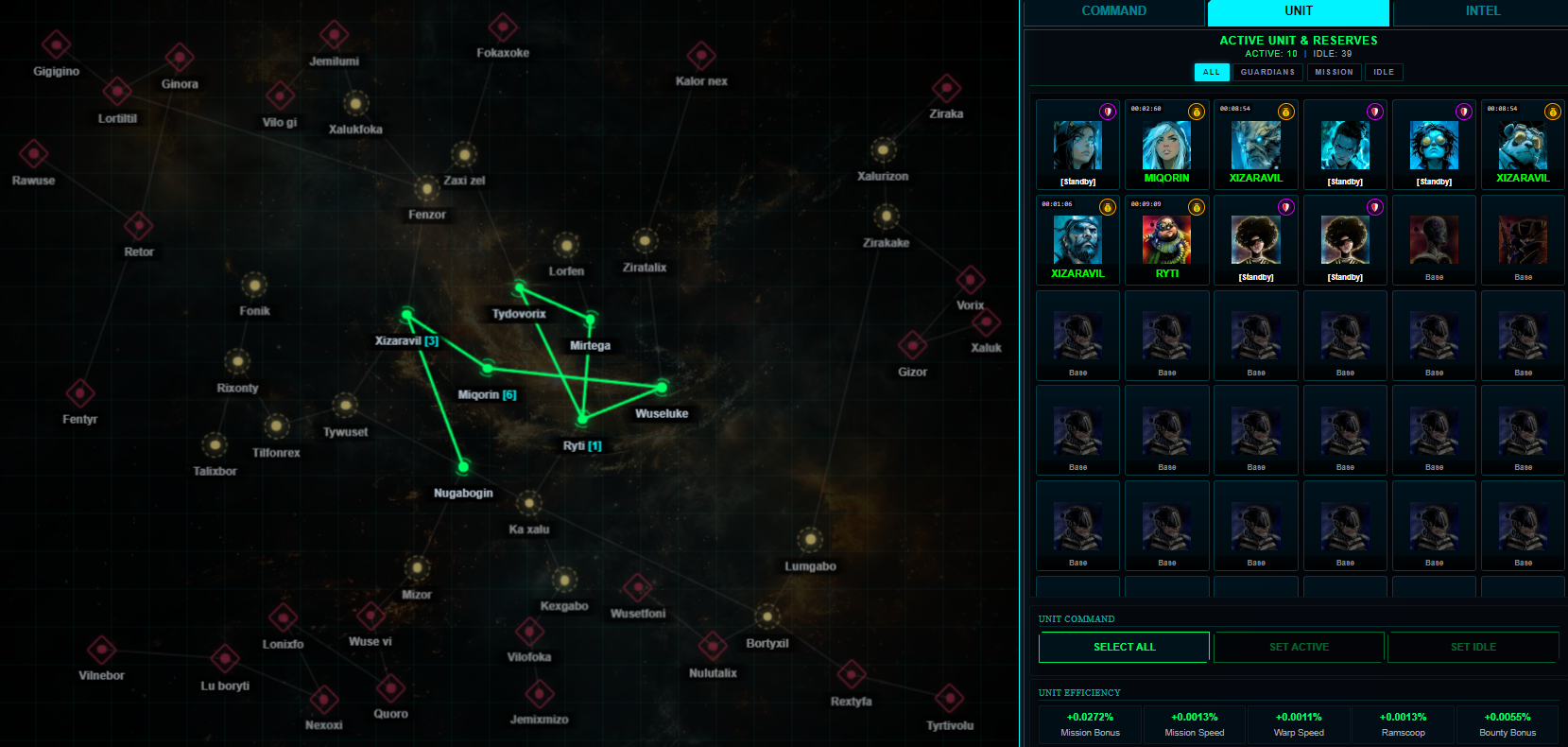
Spacefarer is a passive game mode where players assign Troopers and Companions to complete missions over time. It is an excellent source of resources like Credits, Normal Access Keys and A.R.C Initiators without requiring active gameplay.
Regional Missions
Spacefarer missions are Regional.
- Server-Specific: Each Regional Server (US, EU, and Asia) has its own unique list of missions and open slots.
- Reduced Competition: You only compete for mission slots with players on the same Server. For example, players in Asia do not compete for slots with players in the US or EU.
⚠️ Important: To use your Troopers or Grunt Gears, Import them to that specific Server via the Server Selection screen.
How to Play?
Go to Manage → Spacefarer. The interface is divided into the Galaxy Map (Left) and the Control Panel (Right).
Control Panel
The right side of the screen features three main tabs:
- COMMAND: Manage your strategy and upgrade.
- System Select/Whitelist: Choose which Solar Systems your units are allowed to visit.
- Upgrades: Spend Lifeforce to increase your Max Active Units, Whitelist Capacity, and Unit Stats (Damage & HP).
- Zone Data: View details about rewards in different zones.
- UNIT: Manage your units.
- Filters: Quickly sort units by All, Guardians, Mission, or Idle.
- Active Units: Your Faction Rank provides additional bonuses to the maximum number of units you can have active at once.
- Actions: Use "Set Active" to send units out, or "Set Idle" to recall them.
- INTEL: Track your progress and claim rewards.
- Operation Report: A summary of recent activities.
- Resource Cache: Displays your accumulated resources.
- Claim All Rewards: Collect all accumulated resources to your inventory.
- Access Logs: View a detailed history of your unit's journey.
Galaxy Map
The galaxy map is zoomable and movable. You must ensure travel paths between Solar Systems are connected so your units can move from one system to another. Systems are color-coded by risk:
- Green (Safe Zones): No attacks, but higher competition and lower rewards.
- Yellow (Neutral Zones): Moderate risk. GIO enemies will attack, but Allies' Guardian Troopers will assist you.
- Red (Danger Zones): High risk. Frequent attacks and no ally support, you’re on your own, but offers the highest rewards.
Setting Up Your Unit
Mission Units (Workhorse & Utility)
These units automatically survey, accept, and complete missions.
- How to Start: Select these units in the UNIT tab and click "Set Active". They will automatically travel to systems allowed by your whitelist.
Guardian Units
These units do not run missions. Instead, they patrol the galaxy to protect your Mission Units from attacks.
- Bounty: Guardians Troopers earn extra Credits for every enemy defeated while securing.
Whitelist System
Units will only accept missions in Solar Systems that are on your whitelist.
- Basic Whitelist: 7 Green Safe Zones by default.
- Customizable Whitelist: You can upgrade your Whitelist Capacity using Lifeforce to whitelist Yellow and Red zones.
- Manage Whitelist: Add or remove Yellow and Red Zones anytime in the COMMAND tab to balance risk and reward.
Rewards & Bonuses
Rewards accumulate automatically and can be claimed at any time during the Season in the INTEL tab.
Factors Affecting Rewards:
- Zone Difficulty: Red zones pay more than Green zones.
- Unit Rarity & Type: Both rarity and type of Troopers used will influence your rewards.
- Grunt Gears: Owning Grunt Gears provides passive bonuses (capped at 10 Legendary value). This includes both imported Assets and virtual items in your inventory.